
🏃♂️ PoseNet – Track Full-Body Pose in Scratch #
The PoseNet extension brings real AI-powered full-body tracking into Scratch.
It lets your projects react to your body movements – walk, wave, dance, or jump – all in real time, right in your browser, with no setup required.
Simple enough for students, powerful enough for creative classrooms. ✨

🌟 Overview #
- Detect Full Body: Track major joints – head, shoulders, elbows, wrists, hips, knees, and ankles.
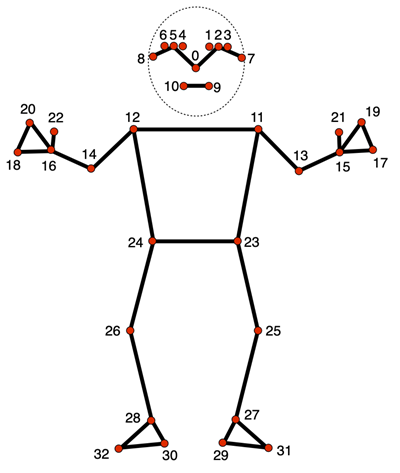
- 33 Landmarks: BlazePose model is used with 33 keypoints (head, arms, torso, legs).
- Read Coordinates: Get the X and Y position of any detected body joint directly on the Scratch stage – use them to move sprites or trigger actions.
- Measure: Calculate angles and distances between two joints.
- Change Camera Preview: Show, hide, or flip the live camera view to match your setup.
- Choose Input: Analyze from the live camera or directly from the Scratch stage image.
✨ Key Features #
- Single-person full-body tracking using BlazePose model.
- Friendly dropdown for common body joints.
- Adjustable “classify” intervals for smooth performance.
- Camera preview, transparency, and device controls.
- Works fully in-browser – safe and private.
🚀 How to Use #
- Go to: pishi.ai/play
- Open the Extensions section.
- Select the PoseNet extension.
- Allow camera access if prompted and check that your video preview appears.
- If no cameras are detected, the input will automatically switch to the stage image instead.
- Once loaded, continuous pose detection starts automatically (you can adjust its mode anytime).
- Now you can use position or measurement blocks to make sprites react to your body – move, jump, or wave to control your project!
Tips
- Stand where your full upper body is visible with reasonable lighting.
- Use people count to check if a person is currently detected.
- For classrooms or older devices, start the classification at 100–250 ms intervals for smoother performance.
🧱 Blocks and Functions #
📍 Position and Count #
Reports the X or Y position of a body joint on the stage.
KEYPOINT: choose a joint from the dropdown list (shoulder, elbow, wrist, etc.).
PERSON_NUMBER: selects which person to track (In BazePose it is only 1). “1” = first detected person.
Returns empty if no person is detected, or when the selected joint is outside the camera view, or its detection confidence is below the minimum threshold.
Reports the number of people currently detected (0 or 1). BlazePose tracks a single person at a time for best accuracy.
📏 Measurements #
Angle (in degrees) between two joints on one person – great for detecting arm raises, leaning, or posture.
Distance in stage pixels between two joints – perfect for stride length or arm-span checks.
Notes:
Default keypoints: 11 (left shoulder) and 12 (right shoulder).
Coordinates are stage-centered (X ≈ −240…240, Y ≈ −180…180).
When the video is mirrored, the X coordinate values are also flipped to match what you see on-screen.
🎯 Confidence #
Sets the minimum detection score (0–1) required for a joint to be counted as valid.
If a joint’s confidence is below this threshold, it’s ignored – meaning X/Y, angle, or distance blocks will return empty instead of unstable values.
0.3–0.5 – Raise it to 0.3-0.5 to reduce jitter or false movement,
0.1–0.2 – lower it to 0.1-0.2 if small joints (like wrists or ankles) are frequently missed.
Reports the current confidence threshold value – useful for showing it on screen or adjusting it dynamically during a project.
ملاحظة: Confidence filtering applies per joint, not per person.
If a specific joint doesn’t meet the threshold, any block using that joint’s coordinates (such as position, angle, or distance) will return empty.
⚙️ Classification Controls #
- classify [INTERVAL] - Choose how often detection runs:
- every time this block runs
- continuous, without delay
- continuous, every 50–2500 ms
- turn classification [on/off] - start or stop continuous detection.
- classification interval - reports the current interval in milliseconds.
- continuous classification - reports continuous detection is “on” or “off”.
- select input image [camera/stage] - choose camera or stage.
- input image - reports the active input source.
🎥 Video Controls #
- turn video [off/on/on-flipped]
- on: shows the camera preview in a mirrored view (like a typical webcam or mirror).
- on-flipped: shows the camera preview in a non-mirrored view — directions appear as in the real world.
- off: turns off the camera preview. In stage input mode, detection continues to run.
- set video transparency to [TRANSPARENCY|text] — adjusts how visible the camera preview is:
- 0: fully visible (solid image)
- 100: fully transparent (invisible but active)
- select camera [CAMERA] — chooses among available cameras on your device. The dropdown lists all detected cameras, and the extension switches automatically to the one you select.
🦵 Common Keypoints (Handy Numbers) #
Use these shortcut numbers for common body joints, or choose from the dropdown menu.
BlazePose (33 keypoints):
1 / 2 / 3: left eye inner / center / outer,
4 / 5 / 6: right eye inner / center / outer,
7 / 8: left / right ear, 9 / 10: mouth left / right,
11 / 12: left / right shoulder, 13 / 14: left / right elbow,
15 / 16: left / right wrist, 17 / 18: left / right pinky finger,
19 / 20: left / right index finger, 21 / 22: left / right thumb,
23 / 24: left / right hip, 25 / 26: left / right knee,
27 / 28: left / right ankle, 29 / 30: left / right heel,
31 / 32: left / right foot index
Numbers match the landmark indices used by MediaPipe BlazePose.
🎓 Educational Uses #
- Explore biomechanics with live joint angles and distances.
- Teach coordinate systems by linking body movement to sprite positions on the stage.
- Apply math and geometry to measure symmetry, stride, or posture.
- Create interactive art, dance, or fitness projects controlled by motion.
🎮 Example Projects #
- Jump Counter: Detect ankle Y-movement to score jumps.
- Arm-Raise Controller: Raise your hand to move a sprite up.
- Balance Game: Use shoulder angles to keep a sprite centered.
- Dance Mirror: Map wrists and ankles to colorful effects.
- Squat Trainer: Count squats using hip-knee angles.
🧩 Try it yourself: pishi.ai/play
🔧 Tips and Troubleshooting #
- No camera?
• Make sure your camera is connected and browser permission is allowed.
• If the camera is blocked, enable it in your browser’s site settings and reload the page.
• During extension load, if no cameras are detected, the input will automatically switch to the stage image so you can still test FaceMesh features. - No detection?
• continuous classification: Use this reporter to see if classification is active.
• If it is active, improve lighting and face the camera directly.
• turn classification [on]: Use this block, if classification is not active, then recheck the classification status with the above reporter.
• In camera input mode, when the camera is turned off, classification is also stopped - you must turn the video back on or switch input to stage.
• In stage input mode, the system classifies whatever is visible on the stage - backdrops, sprites, or images. You can turn off the video completely and still process stage images.
• Stage mode is slower than camera input, so lower your classification interval (e.g., 100–250 ms) for smoother results using this block: classify [INTERVAL]
• In stage mode, “left” and “right” landmarks are swapped because the stage image is not mirrored - coordinate space represents a real (non-mirrored) view.
• Classification can also restart automatically when you use blocks such as:
turn video [on] / classify [INTERVAL] / select camera [CAMERA] / select input image [camera/stage]. - Flipped view?
turn video [on-flipped]: Use this to show the camera without mirroring. “on” mirrors like a selfie; “on-flipped” shows real left/right orientation. - Laggy or slow?
Use classification intervals between 100–250 ms or close other browser tabs to reduce processing load. - WebGL2 warning?
Try Firefox, or a newer device that supports WebGL2 graphics acceleration. - Analyze stage instead of camera?
select input image [stage]: Use this to analyze the Scratch stage image instead of a live camera feed.
🏃♂️ PoseNet Specific Tips #
- Person not detected? Ensure your full upper body is visible – at least your head, shoulders, and arms should be in view for consistent detection.
- Joints missing? Some joints such as wrists or ankles may disappear if they’re covered or outside the frame. Check the people count to confirm detection.
- Low confidence on a specific joint? Improve lighting or slightly lower the minimum confidence value (for example, 0.1–0.2) to help capture difficult joints like ankles.
- Tracking unstable? Stand around 3–6 feet from the camera so your whole body is visible and evenly lit.
- Detect arm raise? Compare the Y position of keypoints 15 or 16 (wrists) with keypoints 11 or 12 (shoulders). If the wrist is higher, the arm is raised.
- Count jumps? Track the Y position of keypoints 27 or 28 (ankles). A sudden upward movement indicates a jump.
- Detect squat? Measure the angle between keypoints 23 (hip), 25 (knee), and 27 (ankle). A smaller angle means a deeper squat.
- Check posture or balance? Calculate the angle between keypoints 11 and 12 (shoulders). A tilt away from horizontal suggests leaning or imbalance.
- Detect walking? Observe alternating movement in the X positions of keypoints 27 and 28 (ankles). Regular side-to-side motion indicates walking.
- Only one person detected with BlazePose? That’s expected – BlazePose focuses on single-person, high-precision full-body tracking.
- Using stage mode with body photos? Landmarks in stage mode are not mirrored – left and right match true anatomical sides.
🔒 Privacy and Safety #
- Everything runs locally in your browser.
- No images or video are uploaded anywhere.
- Model files may download once for offline use.
- Always ask a teacher or parent before using the camera.
- Anytime, you can safely turn video [off].
🧪 Technical Info #
- Model: MediaPipe BlazePose
- Framework: TensorFlow.js (latest version) – runs fully in-browser using WebGL2 acceleration
- People: 1 (single-person detection)
- Landmarks: 33 keypoints (0–32)
- Coordinates: stage-centered pixels (X right, Y up)
- Mirroring: “on” = mirrored preview, “on-flipped” = true view
- Inputs: camera or stage canvas
- Default keypoints: 11 (left shoulder), 12 (right shoulder)
- Requires: WebGL2 for best performance
🔗 Related Extensions #
- 😎 شبکة الوجه – detect facial landmarks
- 🖐️ Hand Pose – detect hand landmarks
- 🖼️ مدرب الصور – build custom AI models
- 🏫 آلة جوجل التعليمية – import your own TM models


