Frog vs Beetle: Control a Scratch Game with Your Face
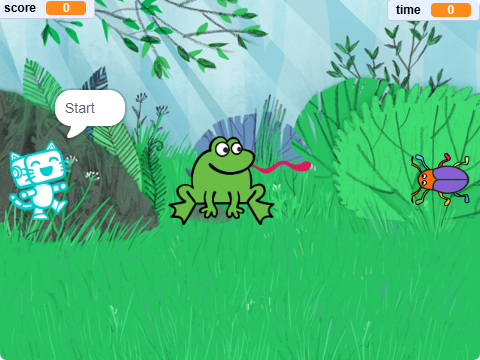
Use your nose to control a hungry frog and catch as many beetles as possible before time runs out. This funny Scratch game uses the FaceMesh AI extension to connect the frog’s position to a precise facial landmark.
Difficulty
BEGINNER
Estimated Time
20–25 MINUTES
Extension
FACEMESH
📖 What You Will Learn
- How FaceMesh detects detailed landmarks on a face
- How to read the X and Y position of the nose tip
- How to control a Scratch sprite by moving your face
- How to make one sprite point toward another
- How to create a timed catching game
- How to use variables to record time and score
Pishi.ai FaceMesh can track 478 facial landmarks and return the Scratch-stage coordinates of any selected landmark. In this project, landmark 1, the nose tip, controls the frog.
🧰 What You Need
- A computer with a working camera
- Chrome, Firefox, Edge, or another modern browser with WebGL2 support
- Pishi.ai Scratch (start a new project)
- The FaceMesh extension (view the help guide)
- A Frog sprite
- A Beetle sprite
- Two variables:
- score
- time
Use good lighting and keep your face visible to the camera so FaceMesh can track it reliably. Face detection runs locally in the browser, and the camera images are not uploaded.
🛠️ Build Your Project
1. Prepare the Game
Add the Frog and Beetle sprites to your project.
Create two variables:
- score
- time
The game will continue for 15 seconds. During that time, the player moves the frog with their nose and tries to catch the beetle.
You can choose any backdrop you like. A pond, garden or forest backdrop would work well.

2. Control the Frog with Your Nose
Add the FaceMesh extension and allow the browser to use your camera.
When the green flag is clicked:
- Set time to 0
- Continue moving the frog until the game finishes
- Set the frog’s X position to the X position of the nose tip
- Set the frog’s Y position to the Y position of the nose tip
- Make the frog point toward the beetle
Use keypoint 1, which represents the nose tip, and select person 1.
Now move your head in front of the camera. The frog should follow your nose around the Stage while always facing the beetle.
Unlike simple face detection, FaceMesh lets the project read the position of an individual landmark from a detailed facial mesh. It can also select a particular person when more than one face is visible.

3. Add the Beetle and Score Points
Program the Beetle sprite to appear at random positions.
When the green flag is clicked:
- Set score to 0
- Move the beetle to a random position
- Reset Scratch’s built-in timer
- Continue until the timer passes 15 seconds
- Make the beetle point toward the frog
- Check whether the beetle is touching the frog
When the frog catches the beetle:
- Increase the score by 1
- Play a croaking sound
- Move the beetle to another random position, then wait for 0.1 seconds to prevent another immediate catch if it appears too close to the frog.
Each time the frog touches the beetle, the beetle escapes to a new position and the player earns one point.

4. Announce the End of the Game
You can use the Stage, Pishi sprite or a separate announcer sprite for the starting and finishing messages.
When the green flag is clicked:
- Say “Start” for one second
- Wait until the time variable becomes FINISH
- Say “Time’s up!”
- Play a finishing sound
The Beetle script changes time to FINISH after 15 seconds. This tells the Frog and announcer scripts that the game is over.

🚀 Try Your Project!
Click the green flag and look toward the camera.
Move your head to guide the frog:
- Move your head left or right to move across the Stage.
- Move your head up or down to reach the beetle.
- Catch as many beetles as possible before the 15-second timer ends.
🤖 How Does It Work?
FaceMesh analyses the camera image and finds detailed points on your face. The project reads the coordinates of landmark 1, located at the tip of your nose.
The frog then uses those coordinates as its own position on the Scratch Stage.
The FaceMesh coordinates are mapped to the Scratch Stage, approximately from −240 to 240 on the X-axis and −180 to 180 on the Y-axis.
When the camera preview is mirrored, the X coordinates are flipped to match the movement the player sees on screen.
Your face
↓
FaceMesh AI
↓
Nose-tip landmark
↓
X and Y coordinates
↓
Frog movement
↓
Catch the beetle
💡 Make It Better!
- Open Your Mouth to Catch the Beetle
Instead of catching the beetle whenever it touches the frog, require the player to open their mouth too.
Measure the distance between:- Keypoint 0, upper middle lip
- Keypoint 17, lower middle lip
Count the beetle only when the lip distance is greater than your chosen threshold. This demonstrates FaceMesh’s ability to measure facial geometry, not only follow a face.
- Blink to Activate Frog Power
Measure the distance between the upper and lower eyelid landmarks.
For example:- Right eye: keypoints 159 and 145
- Left eye: keypoints 386 and 374
When the player blinks, make the frog move faster or temporarily increase the size of its catching area.
- Add More Insects
Give the Beetle sprite several costumes, such as:- Beetle
- Butterfly
- Fly
- Mosquito
Change to the next costume after every catch. You can award different numbers of points for different insects.
- Add Objects to Avoid
Add a bee or spider that removes a point when the frog touches it.
This makes the game more challenging because the player must move their face carefully instead of catching every moving object.