A clear space where your hand is visible to the camera
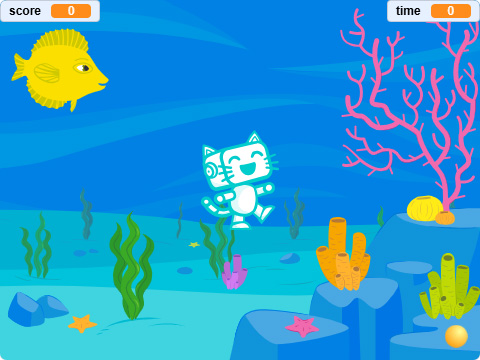
Pishi, Fish and Ball sprites, already included in the project
HandPose can return the Scratch-stage X and Y coordinates of individual hand landmarks. In this project, keypoint 8, the index fingertip, is used to control the ball.
🛠️ Build Your Project
1
1. Prepare Pishi and the Game
Place Pishi on the left side of the Stage and create three variables:
score
time
locked
In the Pishi sprite, set score and locked to 0 when the green flag is clicked.
2
2. Make the Ball Follow Your Finger
Add a Ball sprite. This ball will act as the pointer that follows your index fingertip.
Use the HandPose X and Y blocks with:
Keypoint: 8 (index finger tip)
Hand number: 1
The set time to 0 block makes sure the Ball starts tracking your finger immediately when a new game begins.
As you move your index finger in front of the camera, the Ball follows its position on the Stage.
Click the image to enlarge
3
3. Add the Fish
Add a Fish sprite with several fish costumes.
When the game starts:
Reset the timer
Continue the game until the timer reaches 20 seconds
Check whether the fish is touching the Ball
When the Ball touches the fish, set the locked variable to 1.
Then, while locked = 1, move the fish to the Ball’s X and Y position.
This makes the fish stay attached to the Ball and follow your fingertip smoothly as you move your hand.
4
4. Feed the Fish to Pishi
Inside the same loop, check whether the fish is touching Pishi.
When it reaches Pishi:
Set locked back to 0
Increase the score by 1
Broadcast message1
Move the fish to a random position
Change to the next fish costume
Setting locked to 0 releases the fish from the Ball, so it can appear somewhere else on the Stage.
Each time Pishi is fed, the score increases and a new fish appears in a different position. Changing costumes also makes it look like Pishi is being fed different kinds of fish.
5
5. Add the Timer
While the game is running, continuously copy the Scratch timer into the time variable.
After 20 seconds, set the variable to the word FINISH and broadcast message1.
Using FINISH tells the Ball to stop following the player’s finger and tells Pishi that the game has ended.
6
6. Make Pishi React
When Pishi receives message1, switch to the costume2 briefly and then return to the costume1.
If the game has finished:
Move Pishi to the center of stage
Show the player’s final score
Pishi now reacts every time it eats a fish and announces the score when time runs out.
🚀 Try Your Project!
Click the green flag and allow camera access.
Then:
Hold one hand where the camera can see it clearly.
Move your index finger until the Ball reaches a fish.
Carry the fish toward Pishi.
Touch Pishi with the fish to score a point.
Feed Pishi as many fish as possible before the timer finishes.
🤖 How Does It Work?
The HandPose extension tracks points on your hand. In this project, it follows:
Index fingertip ↓ HandPose finds its X and Y position
↓ The Ball moves to those coordinates
↓ The Ball touches and carries the Fish
↓ The Fish reaches Pishi
↓ The score increases
Keypoint 8 represents the tip of the index finger. HandPose converts its camera position into coordinates that can be used directly on the Scratch Stage.
💡 Make It Better!
Control the Game with Either Hand
Use the hand count block to detect whether one or two hands are visible. For example, use one hand to move the Ball and show a bonus fish when two hands are detected.
Add a Finger Gesture
Use the distance between keypoints block to detect when the thumb and index fingertip move close together. This gesture could freeze the fish, activate a magnet, or collect a nearby fish automatically.
Create a Hand-Controlled Difficulty Level
Use the angle between keypoints block to change the game difficulty. For example, rotating your hand could make the fish move faster or reduce the remaining time.
Improve Tracking When the Hand Disappears
Change the when x/y not found return setting. You can make the Ball stay at its last position or move to a safe position when the camera cannot detect the fingertip.
Add More Fish and Special Rewards
Create more fish costumes or clones. Add a golden fish worth three points and make it appear only when a special hand gesture is detected.
🔗 Share Your Creation
Finished your project? Change the fish, backdrop, timer, and scoring rules to create your own finger-controlled feeding game.