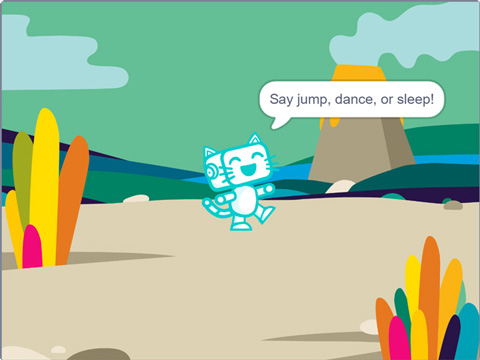
Set the language, choose Pishi’s starting costume, and place Pishi in the starting position.
2
2. Ask and Listen for Commands
Inside a forever loop, Pishi asks for a command, listens to your voice, and shows what it heard.
3
3. Add Voice Commands
Check the recognized words and match them to actions such as jump, dance, and sleep.
4
4. Create Your Own Commands
Add new words and create your own reactions. Make Pishi answer, hello, spin, move, or perform a new animation.
🚀 Try Your Project!
Click the green flag, wait for Pishi to ask for a command, and try:
🎤 “Jump”
🎤 “Dance”
🎤 “Sleep”
🤖 How Does It Work?
Speech Recognition converts your voice into text. Scratch checks the recognized words and runs the matching action.
You say a command
↓
Speech Recognition listens
↓
Your voice becomes words
↓
Scratch checks the words
↓
Pishi responds
💡 Make It Better!
Add More Voice Commands
Teach Pishi to respond to commands such as “Hello,” “Jump,” “Spin,” “Move left,” and “Move right.”
Use Different Ways to Say the Same Command
Make Pishi understand several phrases for one action. For example, “Turn around,” “Spin,” and “Rotate” could all trigger the same movement.
Create a Voice-Controlled Challenge
Add a timer and ask the player to say the correct commands in order before time runs out.
Make Pishi Ask Questions
Let Pishi ask a simple question, listen to the answer, and respond differently depending on the recognized words.
Add Voice-Controlled Emotions
Use commands such as “Be happy,” “Go to sleep,” or “Act surprised” to change Pishi’s costume, sound, and movement.
🔗 Share Your Creation
Finished your project? Add your own ideas and share it with your friends or classmates.